PrF UG slots create slot

From Protege Wiki
Revision as of 02:11, October 9, 2008 by RichMorin (talk | contribs) (Automated import of articles)

(diff) ← Older revision | Latest revision (diff) | Newer revision → (diff)
Jump to: navigation, search

Creating a New Slot


Protege-Frames User's Guide
Slots
The Slots Tab
The Slot Browser
The Slot Buttons
The Slot Menu
The Slot Editor
The Value Type Menu
The Any Value Type
The Boolean Value Type
The Class Value Type
The Float Value Type
The Instance Value Type
The Integer Value Type
The String Value Type
The Symbol Value Type
Creating a New Slot
Viewing a Slot
Editing a Top-Level Slot
Overriding Slot Properties at a Class
Editing Slot Properties
Removing a Slot from a Class
Deleting a Slot from the Project
Adding a Slot to a Class
Removing Overrides From a Slot
Understanding Inverse Slots
Creating an Inverse Slot Relationship
Working with Subslots
Finding a Slot
The Slot Hierarchy Window
The Slot Icons
The Superslots Pane
Glossary, Editing Help

A new slot is created with a generic name, such as newspaper_Slot_1. There are three ways to create a slot:

  • By clicking the Create Slot

    Error creating thumbnail: Unable to save thumbnail to destination
       Slot button
       in the Slot pane of the
       Slots Tab.
       This creates a slot,
       but does not assign it to any class.
       The slot can later be
       attached
       to one or more classes.
    

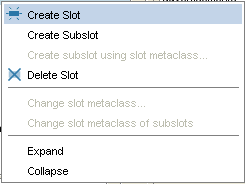
  • By right-clicking in the Slot Browser in the Slots Tab and selecting Create slot from the Slot menu. This is identical to the previous operation.
    Error creating thumbnail: Unable to save thumbnail to destination

  • By selecting a class in the Classes tab and then clicking the Create Slot

    Error creating thumbnail: Unable to save thumbnail to destination
       button in the
       Template Slots pane.
       This creates a slot and
       attaches
       it to the selected class.
    

You can use the Slot Editor to edit the properties of the slot.