Difference between revisions of "PrF UG slots slot browser"
| Line 66: | Line 66: | ||
</ol> | </ol> | ||
| − | < | + | <imagemap> |
| + | Image:PrF_UG_slots_slot_browser.png|Slot Browser | ||
| + | rect 6 267 286 300 [[PrF_UG_slots_finding_a_slot |Finding a Slot]] | ||
| + | rect 204 51 283 75 [[PrF_UG_slots_slot_buttons |The Slot Buttons]] | ||
| + | rect 6 76 281 266 [[PrF_UG_slots_slot_hierarchy |The Slot Hierarchy Window]] | ||
| + | rect 4 303 289 399 [[PrF_UG_slots_superslots_pane |The Superslots Pane]] | ||
| + | desc none | ||
| + | </imagemap> | ||
For information about the Slots Tab user interface | For information about the Slots Tab user interface | ||
Revision as of 23:23, October 20, 2008
The Slot Browser
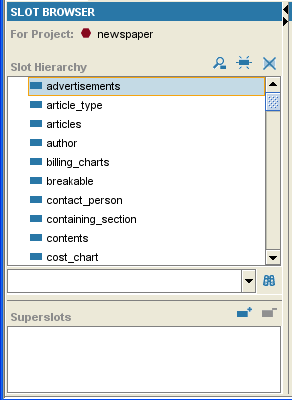
The Slot Browser, on the left of the Slots Tab, displays the all the slots in your project. The Slot Browser includes the following:
Slot Buttons
 :
allow you to create
(
:
allow you to create
( ),
view/edit
(
),
view/edit
( ),
and delete
(
),
and delete
( ) classes
in your knowledge base.
) classes
in your knowledge base.
The Slot Hierarchy Window: displays your slot hierarchy. Icons give additional information about your slots. In this window you can:
rearrange the slot hierarchy, using "drag-and-drop".
select a slot and see its information displayed in the Slot Editor to the right.
right-click a slot to use the Slot Menu, which allows you to create and delete slots as well as work with slot metaclasses.
Slot Search Bar: allows you to find a slot in the Slot Hierarchy window by typing all or part of the slot name and clicking the Search for Slot
 button.
Superslots Pane: allows you to add and remove superslots for a slot as well as jump to a different superslot in the hierarchy view.


For information about the Slots Tab user interface and about accomplishing specific tasks, see the Slots Table of Contents.

