Difference between revisions of "PrF UG projects creating a project"
(Automated import of articles) |
|||
| (2 intermediate revisions by the same user not shown) | |||
| Line 2: | Line 2: | ||
== Creating a Project == | == Creating a Project == | ||
| − | {{PrF_UG_TOC_projects}}<div id='prf_ug'> | + | <noinclude>{{PrF_UG_TOC_projects}}<div id='prf_ug'></noinclude> |
There are two ways to create a new {{#var:Pr}} project: | There are two ways to create a new {{#var:Pr}} project: | ||
| Line 12: | Line 12: | ||
<li><p> | <li><p> | ||
| − | create a {{#var:PrF}} project from existing text files or from a table in a JDBC database | + | create a {{#var:PrF}} project from existing text files |
| + | or from a table in a JDBC database | ||
</p> | </p> | ||
</ul> | </ul> | ||
| Line 25: | Line 26: | ||
<ul> | <ul> | ||
<li><p> | <li><p> | ||
| − | create a project on startup by selecting <b>Create New Project</b> from the start-up dialog | + | create a project on startup by selecting <b>Create New Project</b> |
| + | from the start-up dialog | ||
</p> | </p> | ||
<li><p> | <li><p> | ||
| − | <i>or</i> create a new project from the {{#var:Pr}} window by selecting <b>File | Create New</b>, | + | <i>or</i> create a new project from the {{#var:Pr}} window |
| − | + | by selecting <b>File | Create New</b>, clicking the <b>New Project</b> | |
| − | [[Image:PrF_UG_projects_project.new.gif|projects_project.new]] | + | [[Image:PrF_UG_projects_project.new.gif|projects_project.new]] button, |
| − | + | or entering <b>Ctrl-N</b> (<b>Cmd-N</b>). | |
| − | or entering <b>Ctrl-N</b> (<b>Cmd-N</b>).The <b>Create New Project</b> dialog box will open. | + | The <b>Create New Project</b> dialog box will open. |
| − | |||
</p> | </p> | ||
| + | <div>[[Image:PrF_UG_projects_create_new_project.png|frame|none| | ||
| + | Create New Project dialog]]</div> | ||
</ul> | </ul> | ||
<li><p> | <li><p> | ||
| − | The following | + | The following [[PrF_UG_files_project_types|project types]] |
| − | |||
support the {{#var:PrF}} format: | support the {{#var:PrF}} format: | ||
</p> | </p> | ||
| Line 56: | Line 58: | ||
<li><p> | <li><p> | ||
| − | <b>[[PrF_UG_files_xml_support|Experimental XML]]</b>Normally, | + | <b>[[PrF_UG_files_xml_support|Experimental XML]]</b> |
| − | + | Normally, unless you have a need for a specific structure | |
| − | + | (e.g., for exporting files), | |
you would select <b>{{#var:Pr}} Files</b>. | you would select <b>{{#var:Pr}} Files</b>. | ||
If you wish to help the development of the XML backend, | If you wish to help the development of the XML backend, | ||
| Line 68: | Line 70: | ||
To <i>import</i> a project from existing files, | To <i>import</i> a project from existing files, | ||
select <b>Create from Existing Sources</b>. | select <b>Create from Existing Sources</b>. | ||
| − | You can create a project from existing files in <b>{{#var:Pr}} Files</b> or <b>{{#var:Pr}} Database</b> format. | + | You can create a project from existing files |
| − | [[Image:PrF_UG_files_create_from_existing_checkbox.png| | + | in <b>{{#var:Pr}} Files</b> or <b>{{#var:Pr}} Database</b> format. |
| + | </p> | ||
| + | <div>[[Image:PrF_UG_files_create_from_existing_checkbox.png|frame|none| | ||
| + | Create from Existing Sources checkbox (checked)]]</div> | ||
| + | <p> | ||
| + | To create a <i>new</i>, | ||
<i>empty</i> {{#var:PrF}} project, | <i>empty</i> {{#var:PrF}} project, | ||
leave this unchecked (the default). | leave this unchecked (the default). | ||
| Line 80: | Line 87: | ||
containing the system classes rooted in <b>:THING</b>. | containing the system classes rooted in <b>:THING</b>. | ||
No instances will be created. | No instances will be created. | ||
| − | You can now structure your project by creating your classes and slots. (See | + | You can now structure your project by creating your classes and slots. |
| − | + | (See [[PrF_UG_classes_create_class|Creating a New Class]] | |
| − | and | + | and [[PrF_UG_slots_create_slot|Creating a Slot]] for more information.) |
| − | |||
| − | |||
</p> | </p> | ||
| Line 94: | Line 99: | ||
<li><p> | <li><p> | ||
Enter a name for your project in the Project line of the dialog box. | Enter a name for your project in the Project line of the dialog box. | ||
| − | This is the name of your project (<b>.pprj</b>) file. {{#var:PrF}} also creates internal files for its own use. | + | This is the name of your project (<b>.pprj</b>) file. |
| − | By default, | + | {{#var:PrF}} also creates internal files for its own use. |
| − | + | By default, these files are given the same name, with a different extension. | |
| − | |||
</p> | </p> | ||
</ol> | </ol> | ||
| − | </div> | + | <noinclude></div></noinclude> |
Latest revision as of 18:32, November 13, 2008
Creating a Project
There are two ways to create a new Protege project:
create a completely new project
create a Protege-Frames project from existing text files or from a table in a JDBC database
To create a project:
Create a new project:
create a project on startup by selecting Create New Project from the start-up dialog
or create a new project from the Protege window by selecting File | Create New, clicking the New Project
 button,
or entering Ctrl-N (Cmd-N).
The Create New Project dialog box will open.
button,
or entering Ctrl-N (Cmd-N).
The Create New Project dialog box will open.
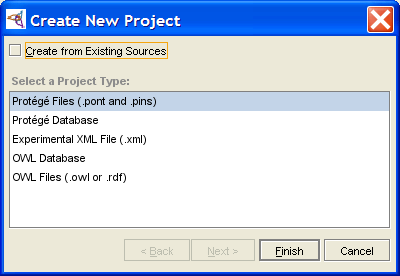 Create New Project dialog
The following project types support the Protege-Frames format:
Experimental XML Normally, unless you have a need for a specific structure (e.g., for exporting files), you would select Protege Files. If you wish to help the development of the XML backend, you can select Experimental XML.
To import a project from existing files, select Create from Existing Sources. You can create a project from existing files in Protege Files or Protege Database format.
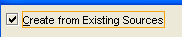 Create from Existing Sources checkbox (checked)
To create a new, empty Protege-Frames project, leave this unchecked (the default).
Click Finish. The Protege-Frames window will open and the standard tabs will become visible. An initialized knowledge base will be created, containing the system classes rooted in :THING. No instances will be created. You can now structure your project by creating your classes and slots. (See Creating a New Class and Creating a Slot for more information.)
To save the project to disk, select Save from the File menu.
Enter a name for your project in the Project line of the dialog box. This is the name of your project (.pprj) file. Protege-Frames also creates internal files for its own use. By default, these files are given the same name, with a different extension.


