PrF UG files database backend
Database Format
You can save the ontology-related information for a Protege-Frames project as a single table in a JDBC database. Note that this is a "flat" table that does not use any special database constructs to represent the information. Information specific to the Protege-Frames user interface is stored in a separate Protege project (.pprj) file. See Understanding Project Types for more information about these files.
Requirements
Before you create a Protege Database project, you will need to do the following:
Make sure you have a database program installed on your system.
Make sure you have a JDBC driver that is compatible with your database and the version of the Java VM that you are using.
If you are using Microsoft Access, you don't need to acquire a JDBC driver; it's already bundled into the JDK. (not recommended option due to slow performance)
Otherwise, acquire a driver and rename it to "driver.jar" (or "driver1.jar" or "driver2.jar", if you have several). Add this driver to the Protege installation directory (not the plugins directory).
You can store multiple projects in the same database by giving their tables different names.
Note: When a project is saved in a JDBC database, backend changes to the database (for example, changes to slots, classes, and instances) are committed as soon as they are made. However, changes to the User Interface (stored in the .pprj file) are not committed until you save the project, for example by clicking Save.
Creating or Importing a Database Project
Select New Project from the File menu. The Create New Project dialog box will open.
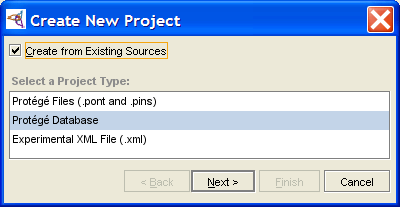
Create New Project dialog box, "Protege Database" selected To import a project from existing files, select Create from Existing Sources. To create a new, empty Protege-Frames project, leave this blank (the default).
Create from Existing Sources checkbox (checked) Select Protege Database as the project type.
Click Next.
A Protege Database dialog box will be displayed.
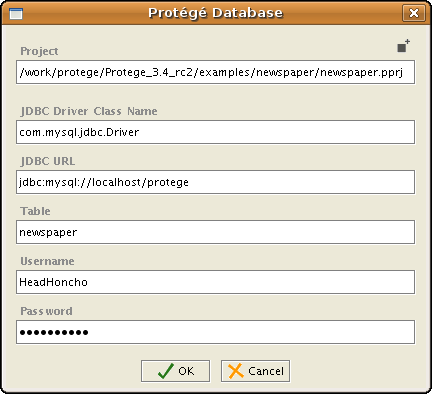
Protege Database dialog box Enter the class name of your JDBC driver in the JDBC Driver line of the dialog box. The class name can be found in the documentation provided with your particular driver. (For Microsoft Access, use: sun.jdbc.odbc.JdbcOdbcDriver)
Enter the URL for your database in the JDBC URL line.
Note: For Microsoft Access, navigate to the "ODBC Data Source Administrator" dialog via the Control Panel and add a User DSN for your Access database. If you're unfamiliar with how to find this dialog or how to add a User DSN, please refer to Microsoft Windows Help. Your URL will look like: jdbc:odbc:<User DSN name>
Enter the name for the database table where you will be storing the information. If you are importing a file, enter the name of the table that contains the information you wish to import. This field is required.
If your database requires a username and/or password, enter these in the appropriate lines of the dialog box.
Click Finish.


To save your project and give it a name, select Save from the File menu. See Saving a Project for more information.
Converting a Protege-Frames Project to a Database
Select File | Convert Project to Format...
Select Protege Database in the Select Format dialog box.
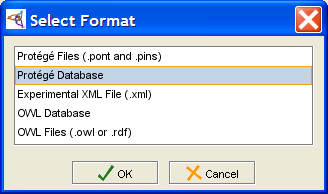
Select Format dialog, "Protege Database" selected In the Protege Database dialog box, fill out the required information, as described above.


