PrF UG meta change metaslot
Changing the Slot Metaclass of a Slot
If you have multiple slot metaclasses in your project, then for any existing slot, you can change the slot metaclass you use for that slot. This gives the slot and the Slot Editor the attributes defined by the new slot metaclass. Subslots that you create subordinate to the slot will also use the new slot metaclass. However, any existing subslots will continue to use their previously assigned slot metaclass unless you specifically change it.
Unlike metaclasses, you cannot create a slot using the slot metaclass. If you want to have a slot that uses a specfic slot metaclass, you must first create the slot, then change the slot metaclass.
To change the slot metaclass of an existing slot:
In the Slots Tab, click on the slot that you want to change.
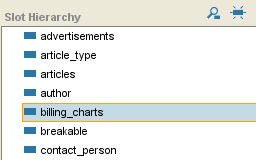 Slots Tab, billing_charts selected
Click the right mouse button and select Change slot metaclass....
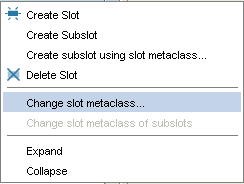 Change slot metaclass... selected
A dialog box displays the slot metaclasses. Note that if the slot currently uses a non-standard slot metaclass, you can revert to :STANDARD-SLOT.
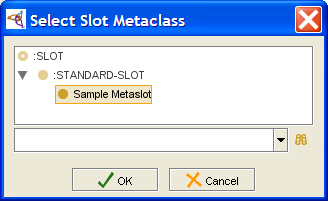 Select Slot Metaclass dialog
Select the slot metaclass that has the properties that you want and click OK. The highlighted slot will now have the Slot Editor and properties determined by the selected slot metaclass.


